In certain situations, it may be necessary to generate separate invoices for additional charges incurred during a guest's stay, as well as for the hotel room itself. Our system is designed to accommodate this need, allowing for the seamless creation of distinct invoices. This flexibility ensures clarity in billing and helps guests easily understand their charges.
How to invoice a specific product
The 'To Invoice' smart button is available to the user only when the status of the reservation is 'Confirmed' or 'Checked-In'.

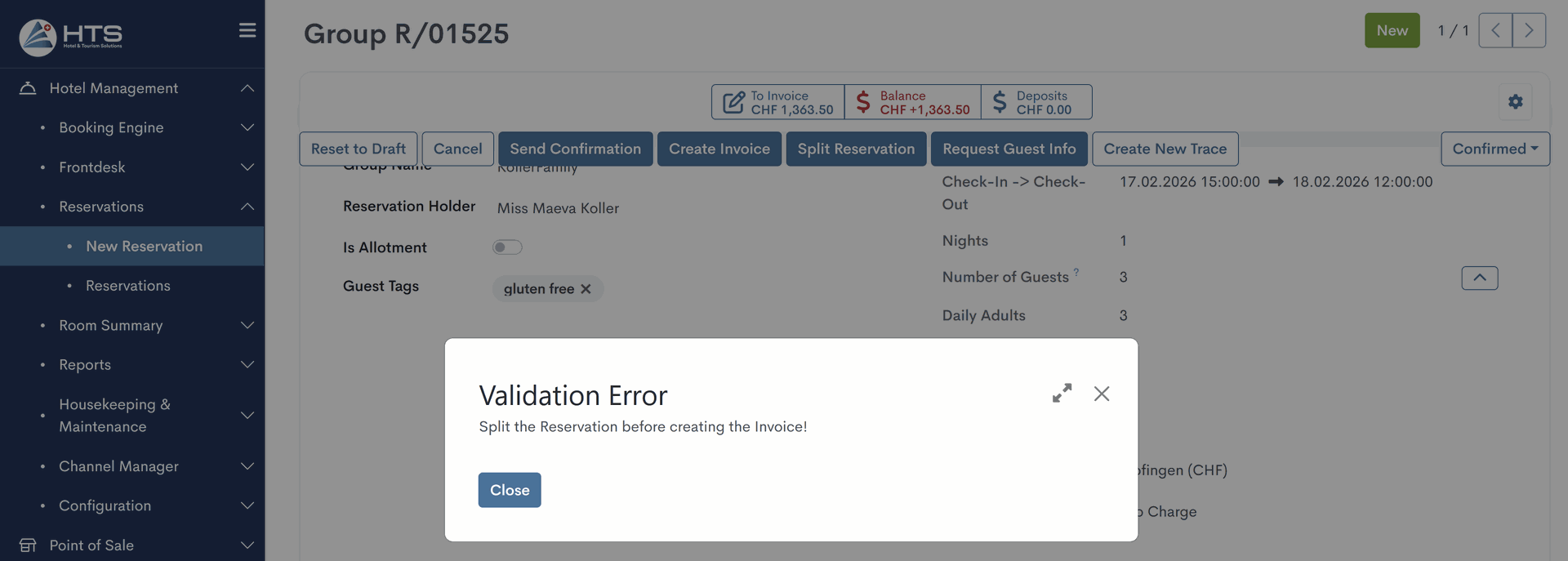
The group reservation must be split and in Confirmed or Checked-In status. If the reservation has not yet been split, the following validation message will be displayed to the user.
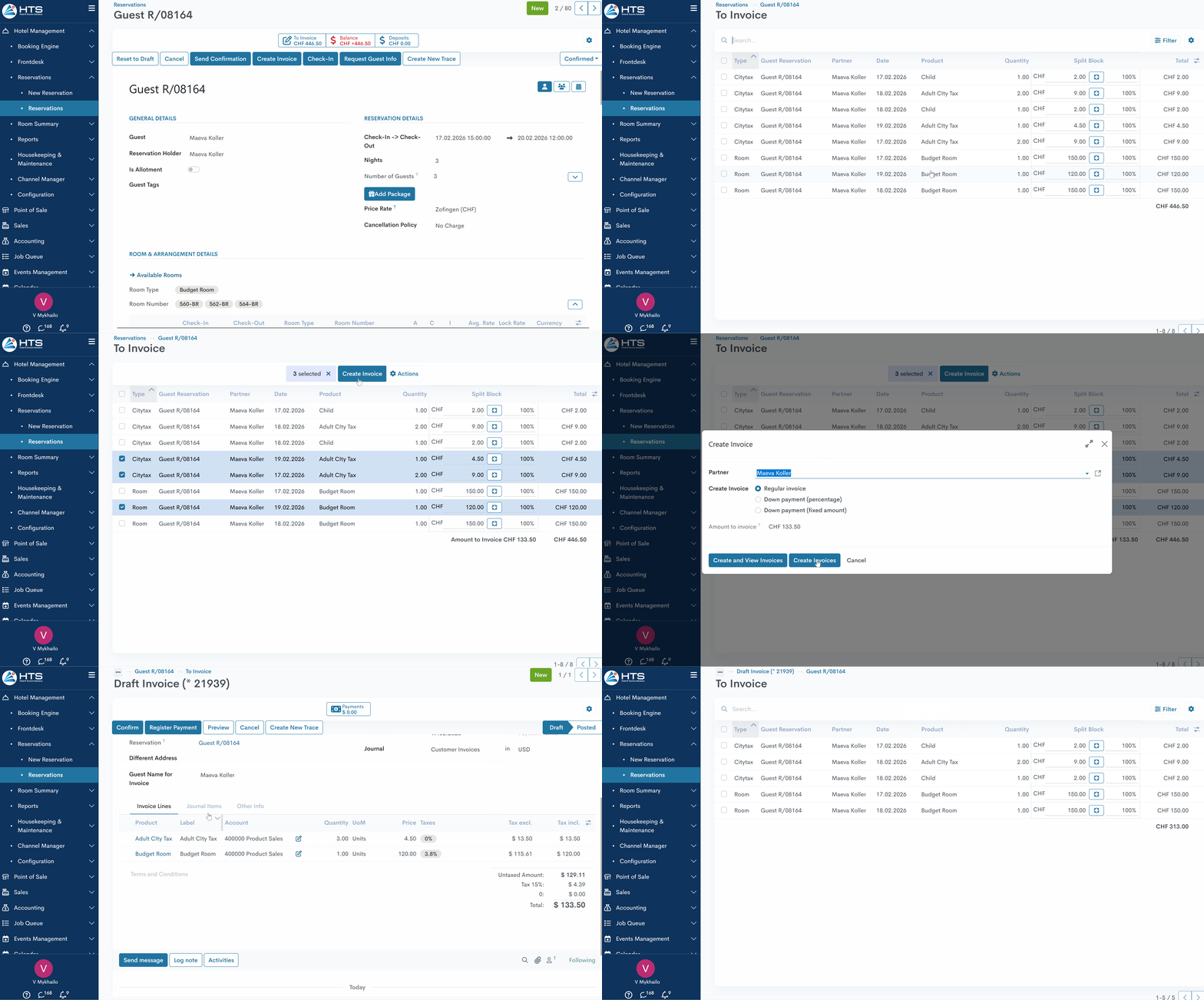
This button is located above the reservation status bar at the top of the reservation. By clicking this smart button, a new window will appear displaying all the products available from the overview. Once at least one item is selected (click on the checkbox in a corresponding line), the 'Create Invoice' button appears. After clicking on the 'Create Invoice' button, you can change the name of the guest in this invoice, if necessary. The following two options are also available:
- Create and View Invoices - create and check the created invoice with the possibility to confirm it, add a payment, or cancel it if needed;
- Create Invoices - the invoice will be created, and the user will be redirected to the reservation page.
The invoice that has been created can be accessed by selecting the 'Invoice' smart button, with the digit indicating the total count of invoices linked to a particular reservation. Once the invoice is generated, the system adjusts the 'To Invoice' button to show the outstanding amount that remains to be invoiced.
Draft Invoice Status
When an invoice is created via the To Invoice smart button, the invoice is generated in Draft status. All invoice lines in this state remain read-only, the same as in Posted status - it is not possible to delete lines or modify quantities or prices. Creating a draft invoice does not lock the reservation (no lock icons near invoice items), so the user can still apply changes when needed, such as adjusting the room number or type, prices, and other details.
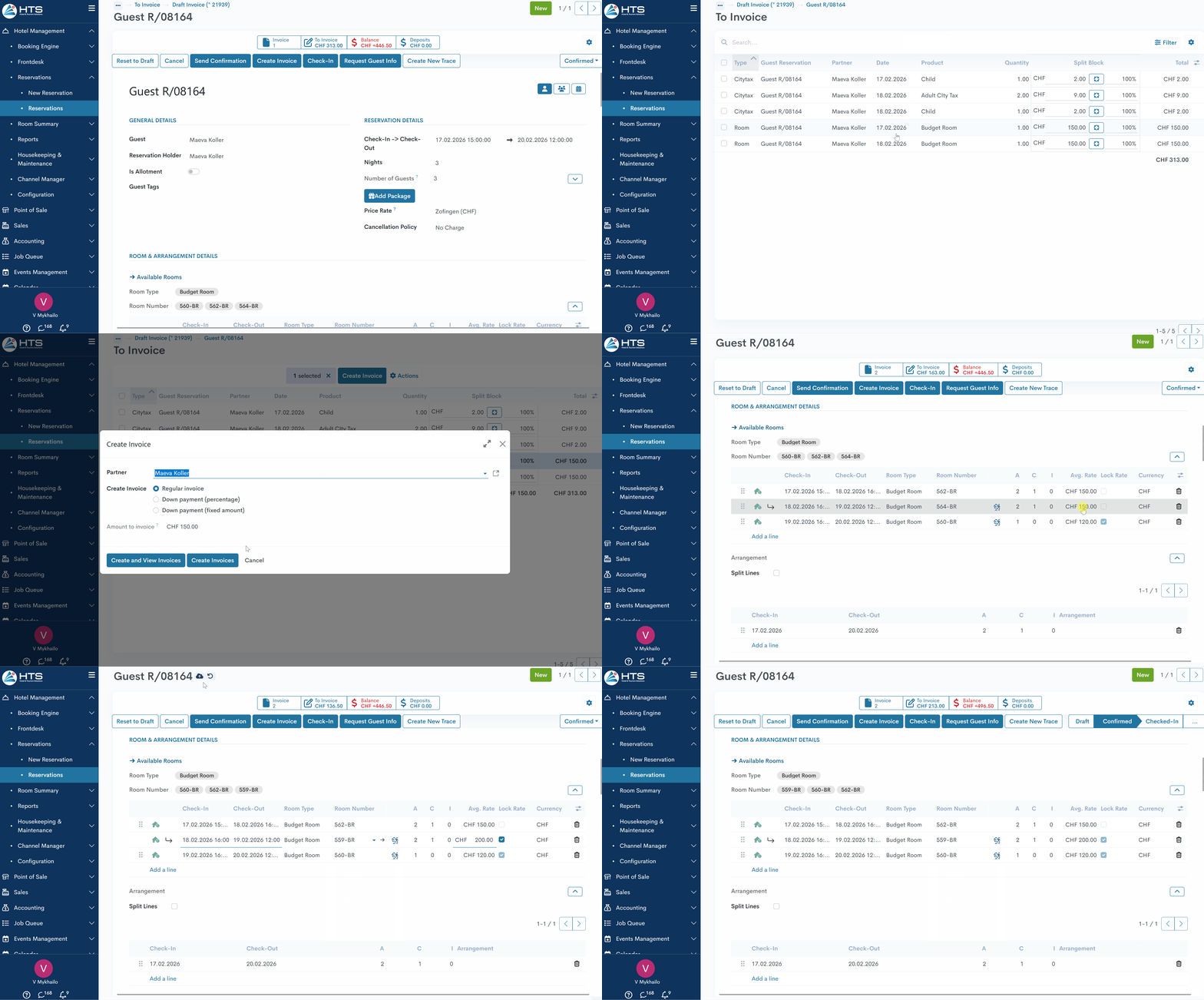
The Register Payment button is also available in Draft status, allowing the user to record full or partial payments. The payment amount and status are displayed in the Payments smart button at the top. This button remains visible until the total recorded payments match the invoice amount.

Posted Invoice Status
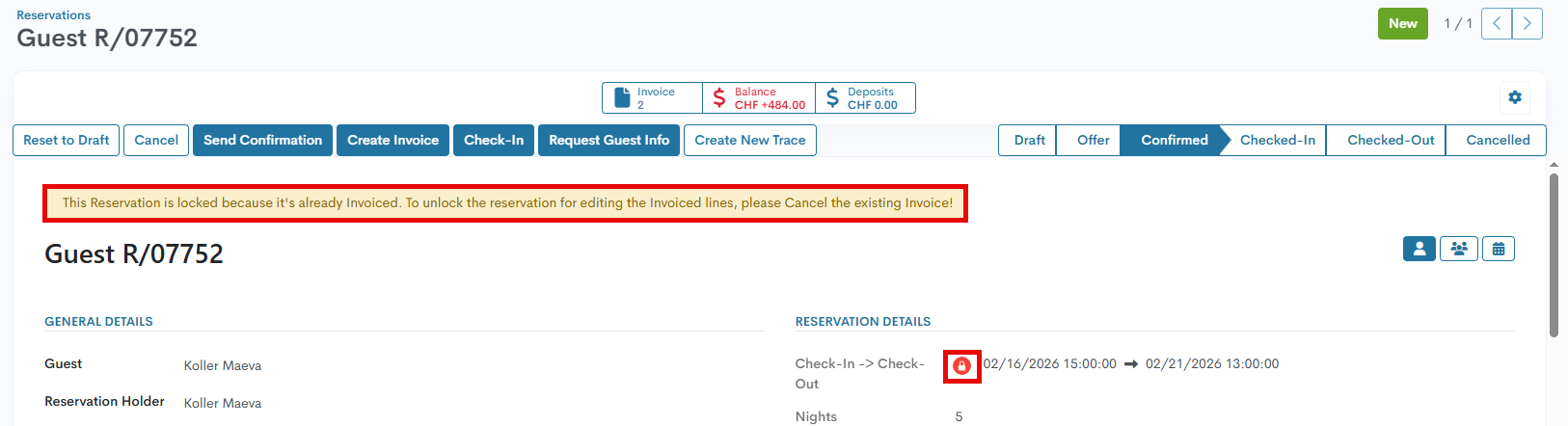
When at least some items are invoiced, and an invoice status is set to the Posted, the reservation is marked with a 'Locked' red icon, which indicates that changes to the invoiced room, arrangements, city tax products, or similar aspects are no longer allowed. The message's text is customizable - discover more details in this article.
There are no comments for now.
to be the first to leave a comment.