Some corporate guests can be reimbursed only for accommodation, while additional charges (e.g., breakfast, dinner, minibar) must be paid privately. To comply with corporate reimbursement policies, hotels often need to provide a single summarised invoice line instead of a detailed breakdown.
Edit Mode
The "Summarised Lines" feature allows hotels to combine multiple invoice items into one line while keeping correct VAT calculations.
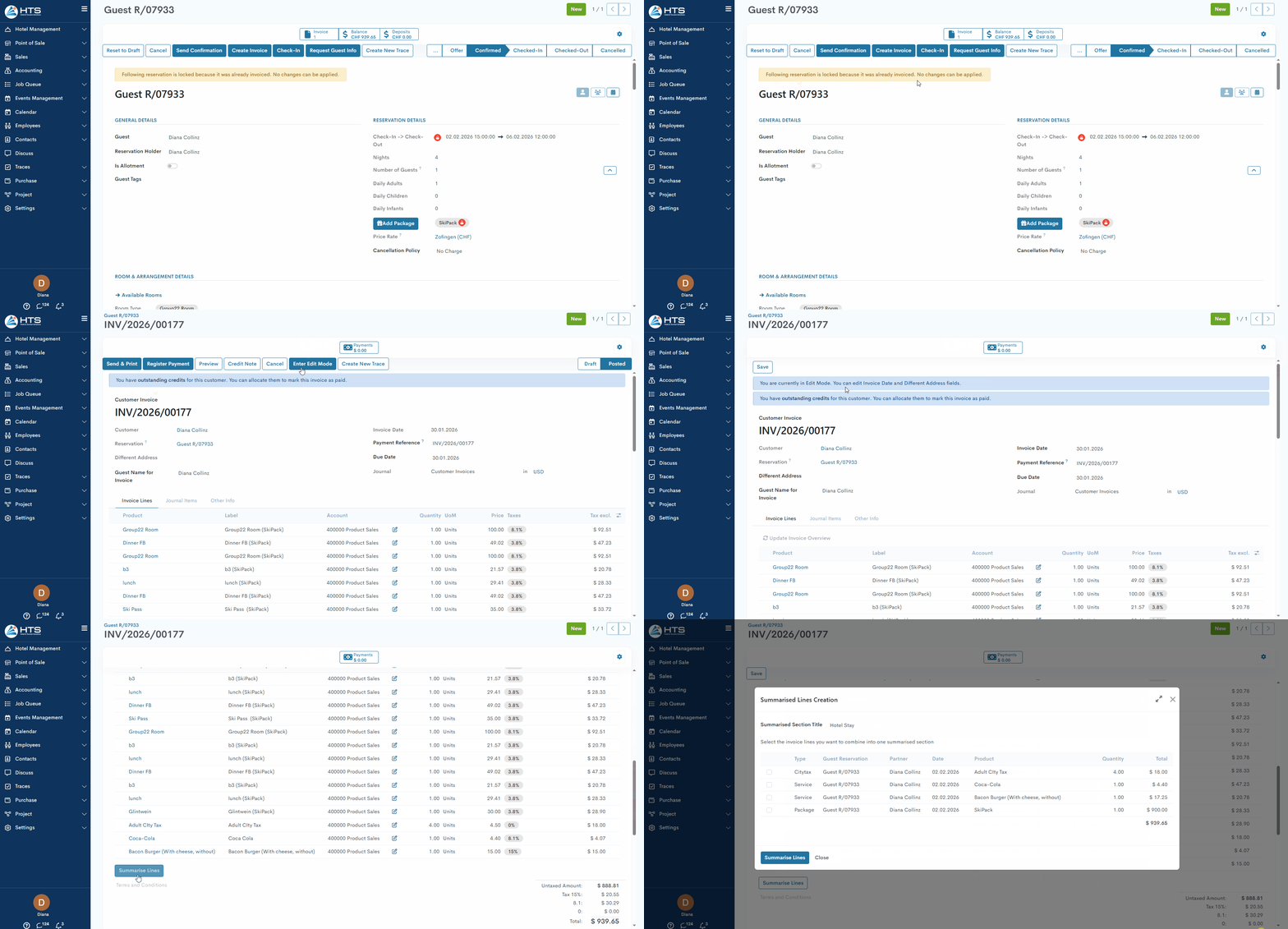
Wizard view
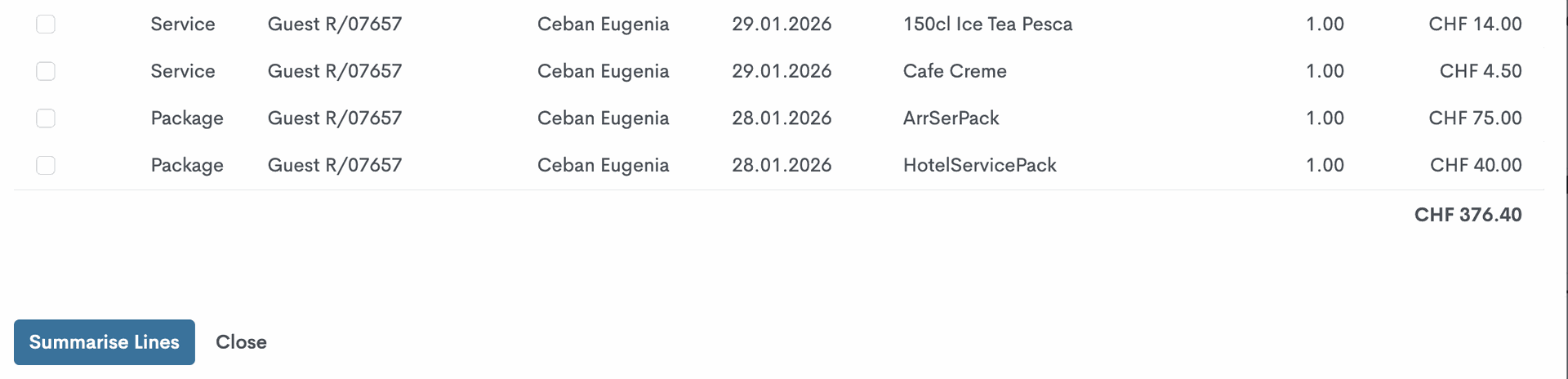
When the user clicks the 'Summarise Line' button, the following wizard appears:
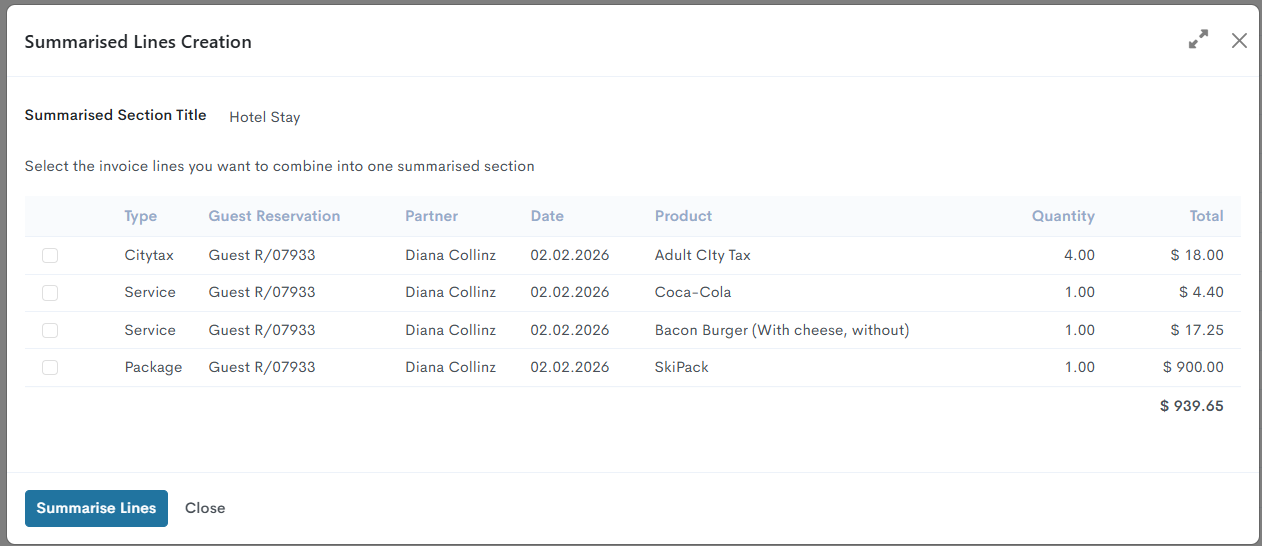
At the top of the wizard will be displayed the title of the new section of the summarised lines. “Hotel Stay“ is a default title that can be changed. Below is an informative message, which explains what needs to be done: “Select the invoice lines you want to combine into one summarised section.“
Each invoice line has a checkbox; therefore user can pick lines they want to add to the summarised section.
Each invoice line in the wizard will display:
- Type
- Guest Reservation
- Partner
- Date
- Product
- Quantity
- Total
The user can confirm or cancel the operation using, respectively, the buttons 'Summarise Lines' and 'Close'.
Creation of the summarised section
In case the user confirms the creation of a summarised section, the system:
- Calculates the total of all selected invoice lines.
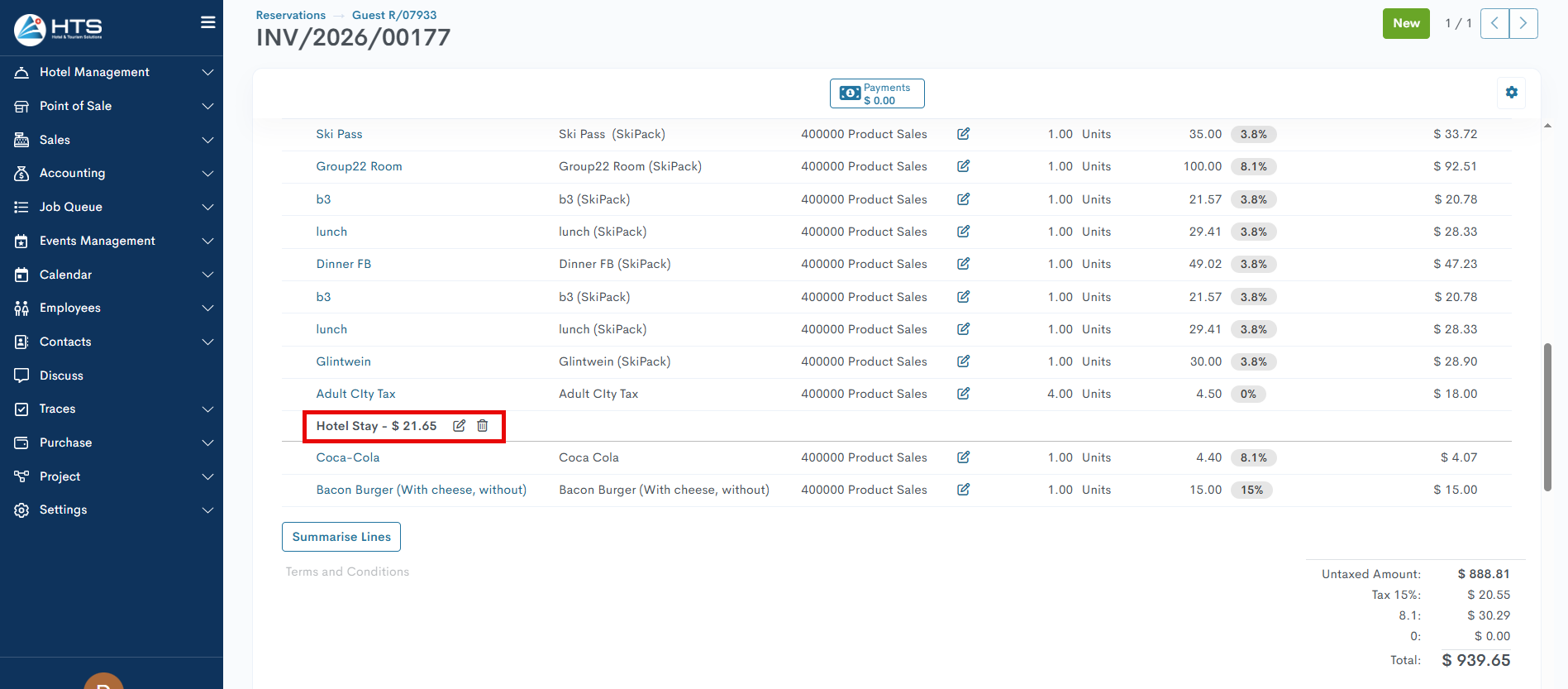
- Creates the new {Section Title} section showing the total amount (Example: “Hotel Stay - 21.65“).
- Displays the selected summarised lines in the section, below the title.
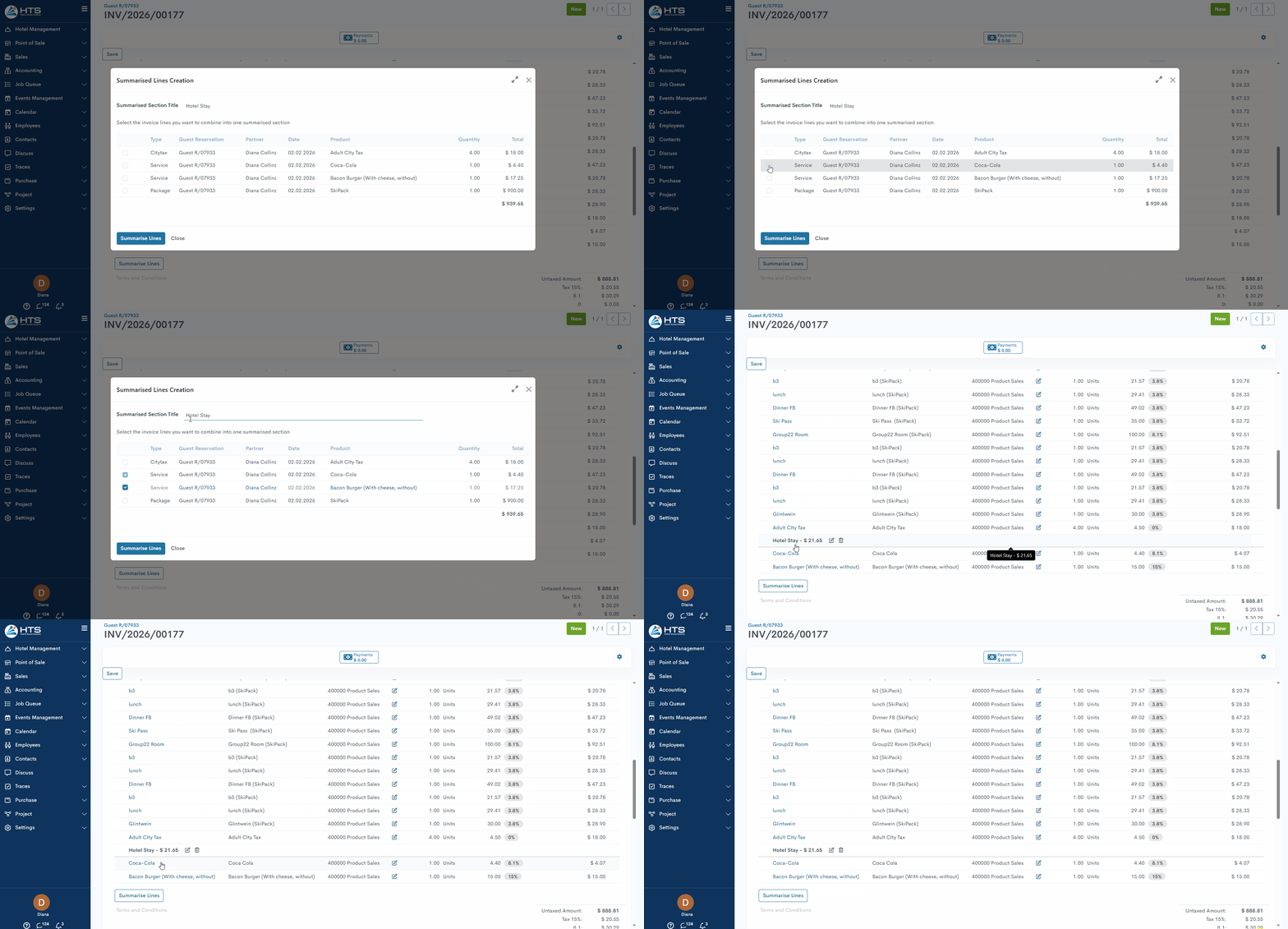
The summarised lines will be hidden in the invoice PDF.

Each invoice line in the overview will display the same information as usual:
- Product
- Quantity
- Price
- Taxes
- Tax. excluded
- Tax. included
A chatter log entry is added:
“Invoice updated: summarised X lines into {Section Title}. Included items: {Product}, {Quantity}, {Price}.”
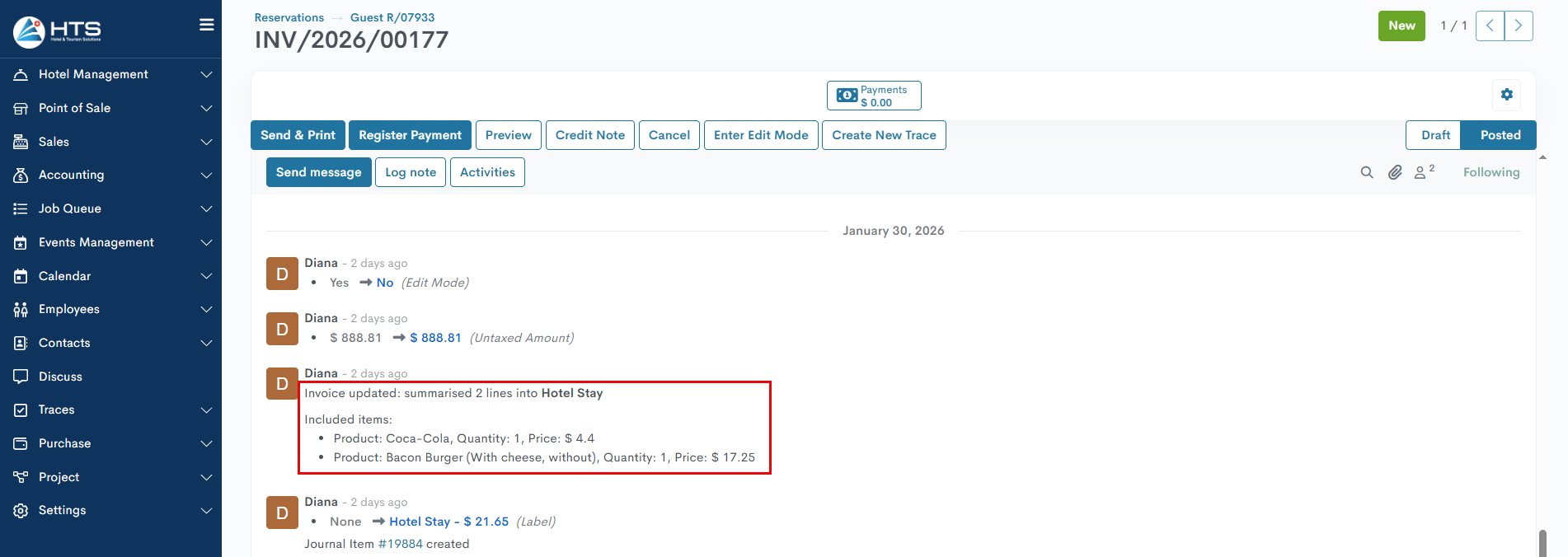
The section can be edited or deleted - respective icons appear next to the section title.
Summarised section edit
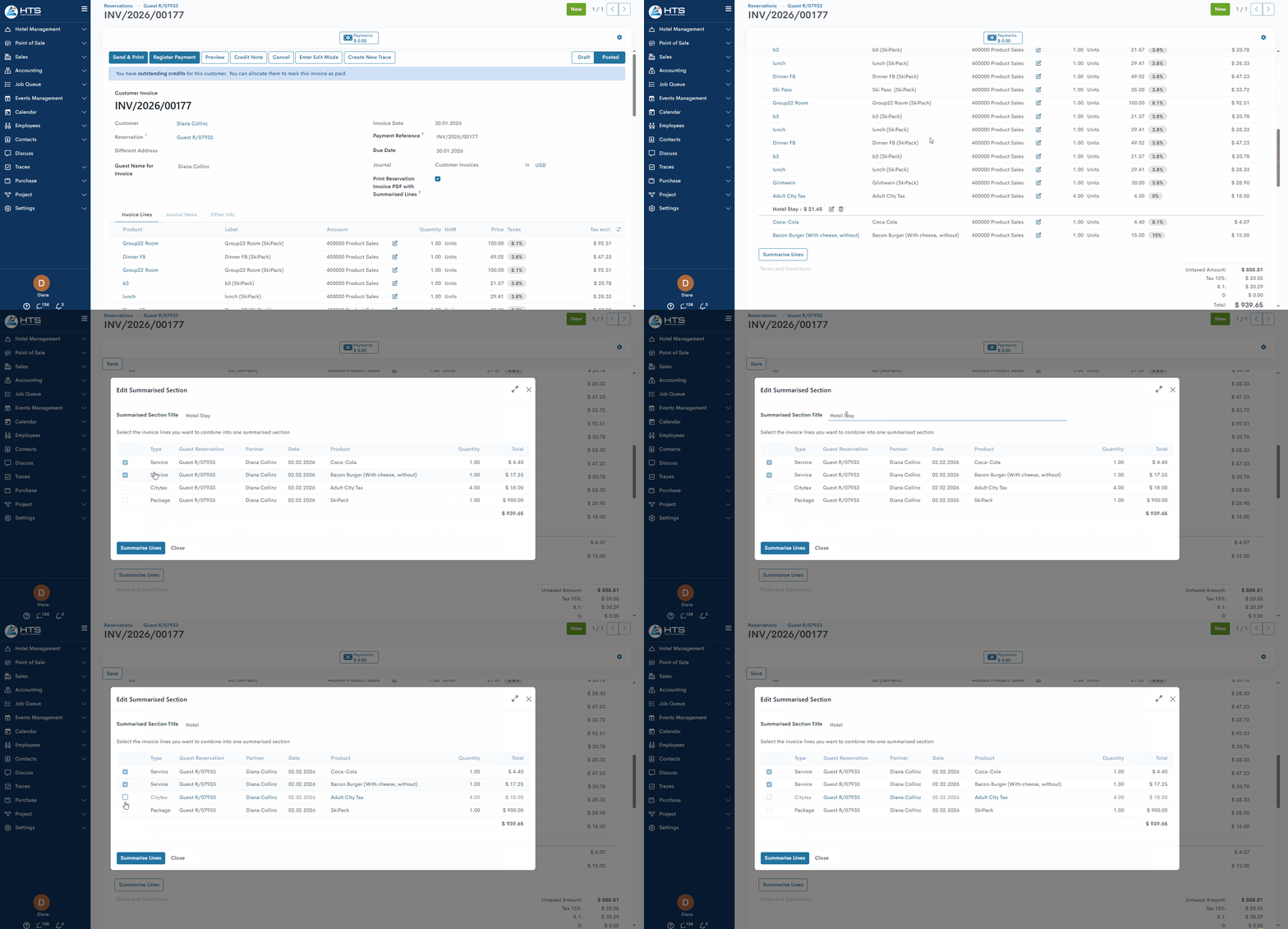
Clicking the “Edit” icon reopens the wizard. Wizard:
Wizard:
- Displays previously summarised lines as pre-checked (and therefore prevents re-selection of already included lines)
- Allows editing of the section’s title.
Addition of new invoice lines
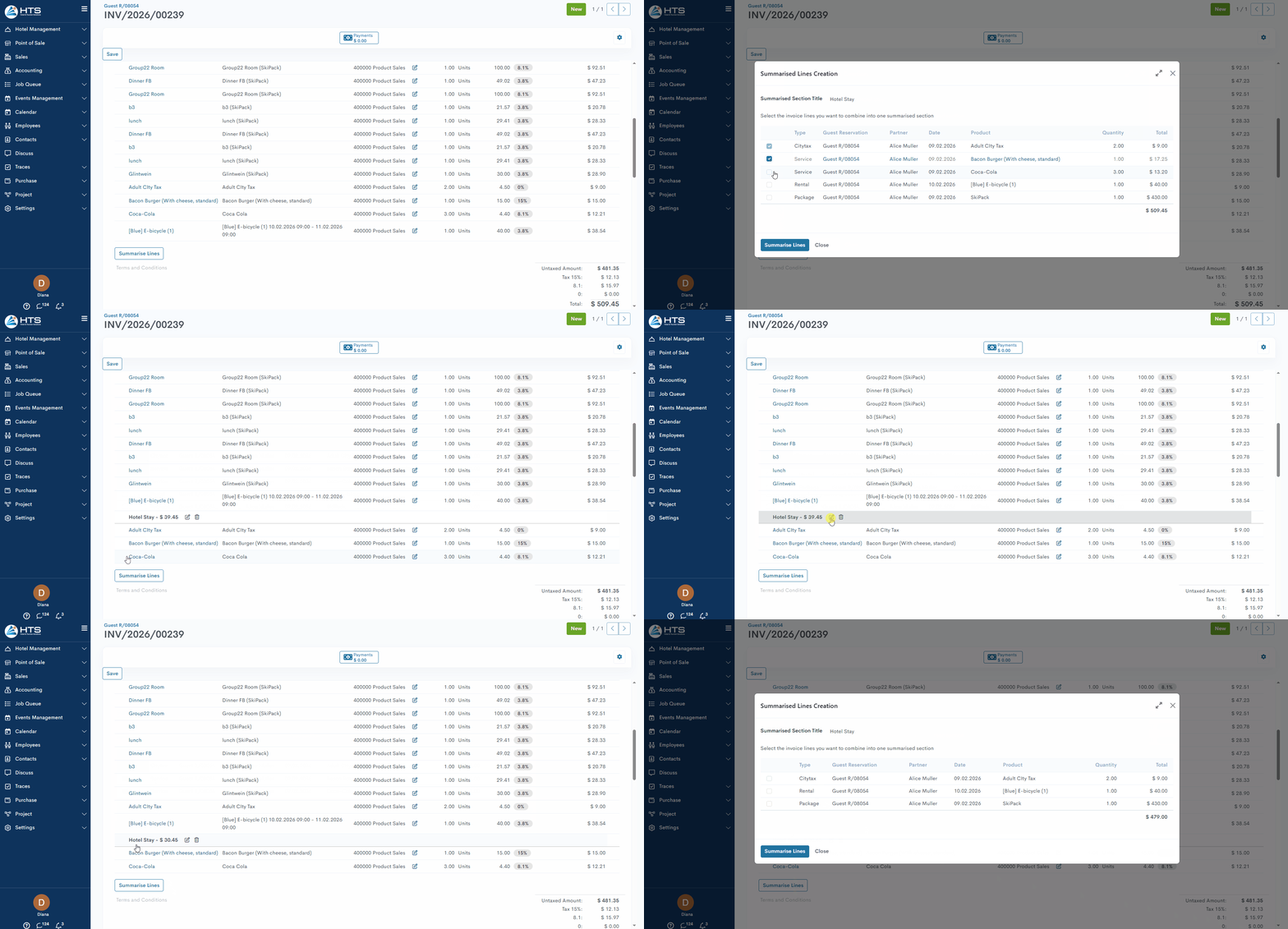
If new invoice lines are added after initial summarisation (via 'Update Invoice Overview'), they appear unchecked in the wizard. All the newly added invoice lines will be displayed above the summarised sections.
The user can include them in the summarised section. Each invoice line can belong to only one summarised section. To reassign an invoice line, the user must first remove it from its current summarised section. If the invoice line was already assigned to a summarised section, it will not be displayed in the wizard for any other potential sections.
Summarised section removal
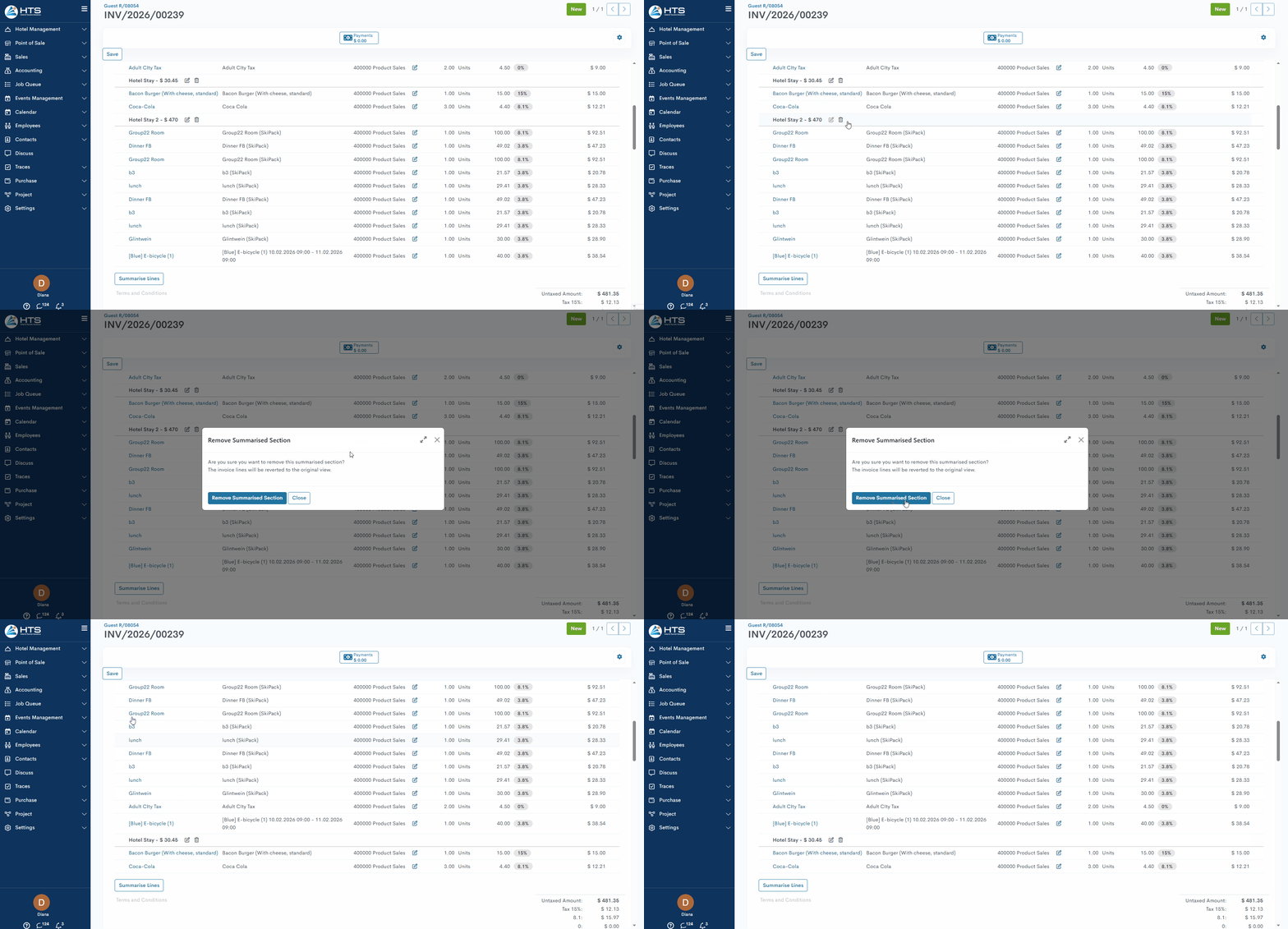
Clicking the 'Delete' icon triggers a warning message pop-up: “Are you sure you want to remove this summarised section? The invoice lines will be reverted to the original view".
The warning message pop-up will allow 2 actions:
- Remove Summarised Section - confirms and restores original lines.
- Close - cancels the action.
By removing this section, the invoice overview will return to the default state.
Complex product management via summarised section
A complex product (Example: packages, room sets, HB, FB) cannot be split between different summarised sections.
Momentan sind keine Kommentare vorhanden.
, um als erster einen Kommentar zu hinterlassen.