The Room Plan also provides the ability to view and create various events or meetings directly in the calendar, making it easier to manage not only guest reservations but also additional activities and schedules.
How to create a calendar event
To create a new calendar event from the Room Plan:
- Open the Hotel Management.
- Go to the Room Plan via the Front Desk menu.
- On the Room Plan, hover your mouse cursor over the desired date.
- Click +Add event.
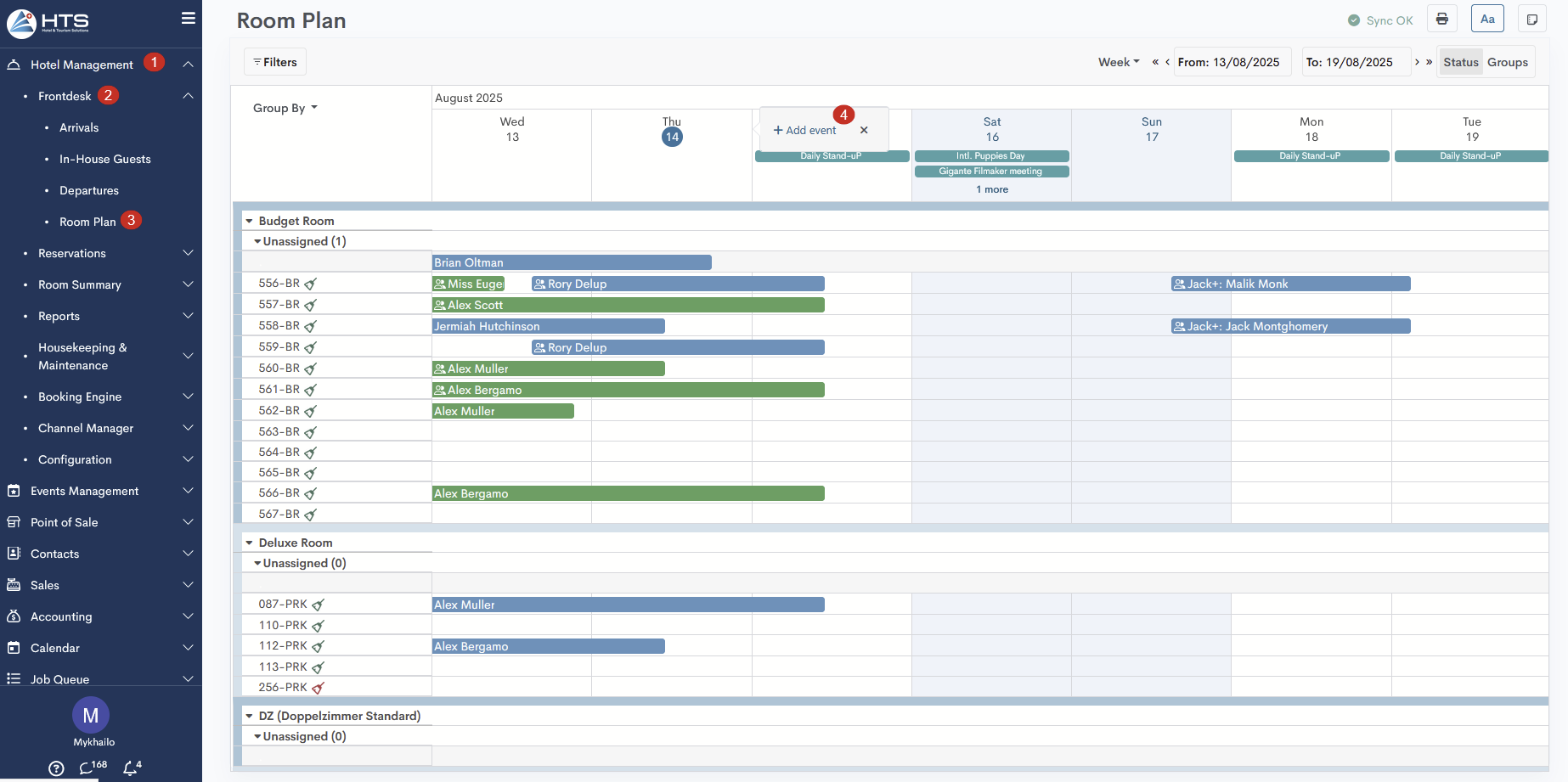
After clicking this +Add event button, the system will open the event form calendar, where you need to fill in the title, dates, and other details — more information can be found in a separate article.
Event Tags
Events on the hotel room plan are displayed as tags within each date cell. This allows you to quickly see important scheduled activities without opening the full calendar.
- For each day on the room plan, the system shows up to two tags for calendar events.
- If there are more than two events, a “+X more” counter will appear.
- Long event names are shortened with an ellipsis (e.g., waytoolongeventname...).
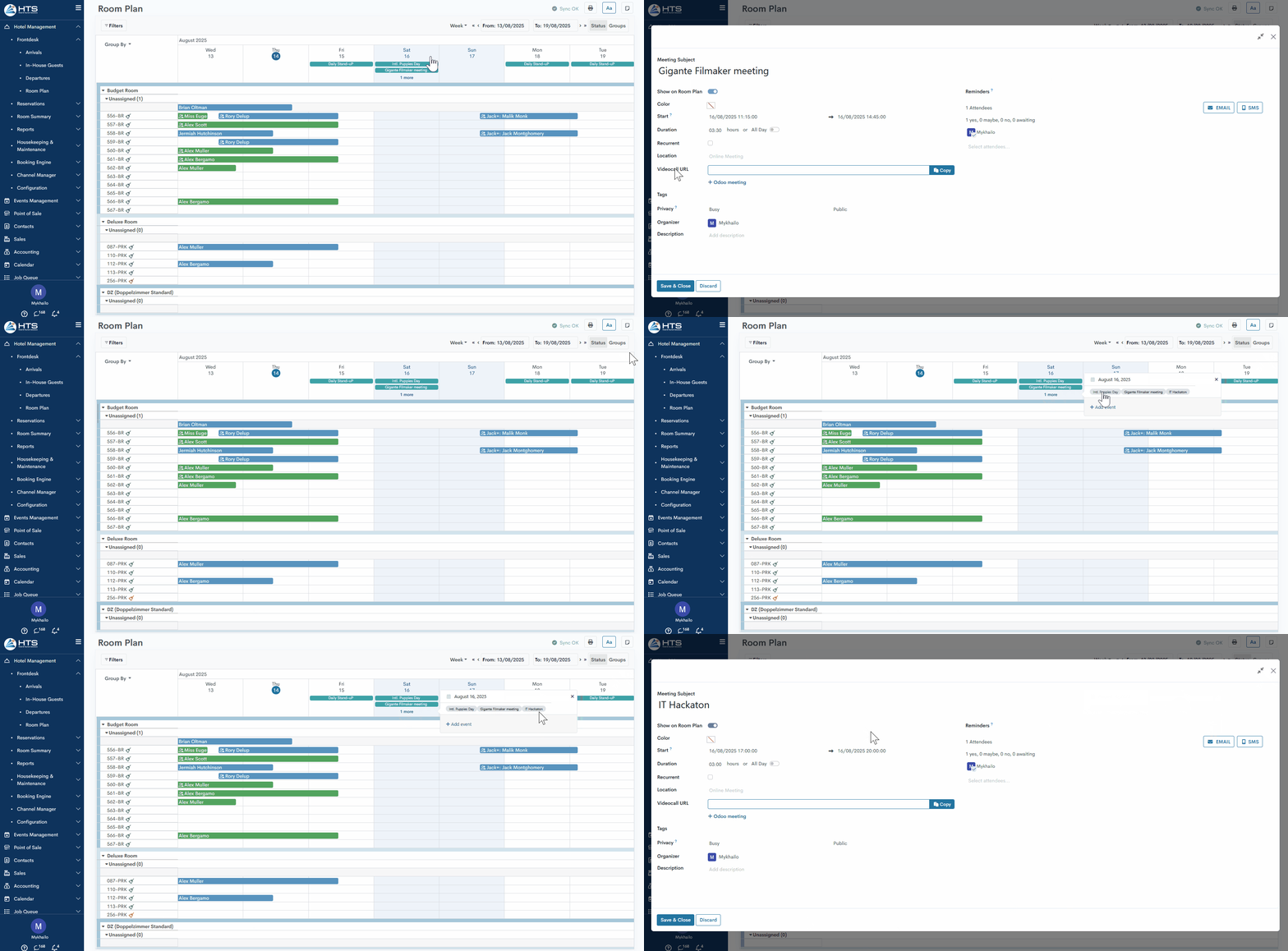
- Clicking an event tag opens the event details in a pop-up window.
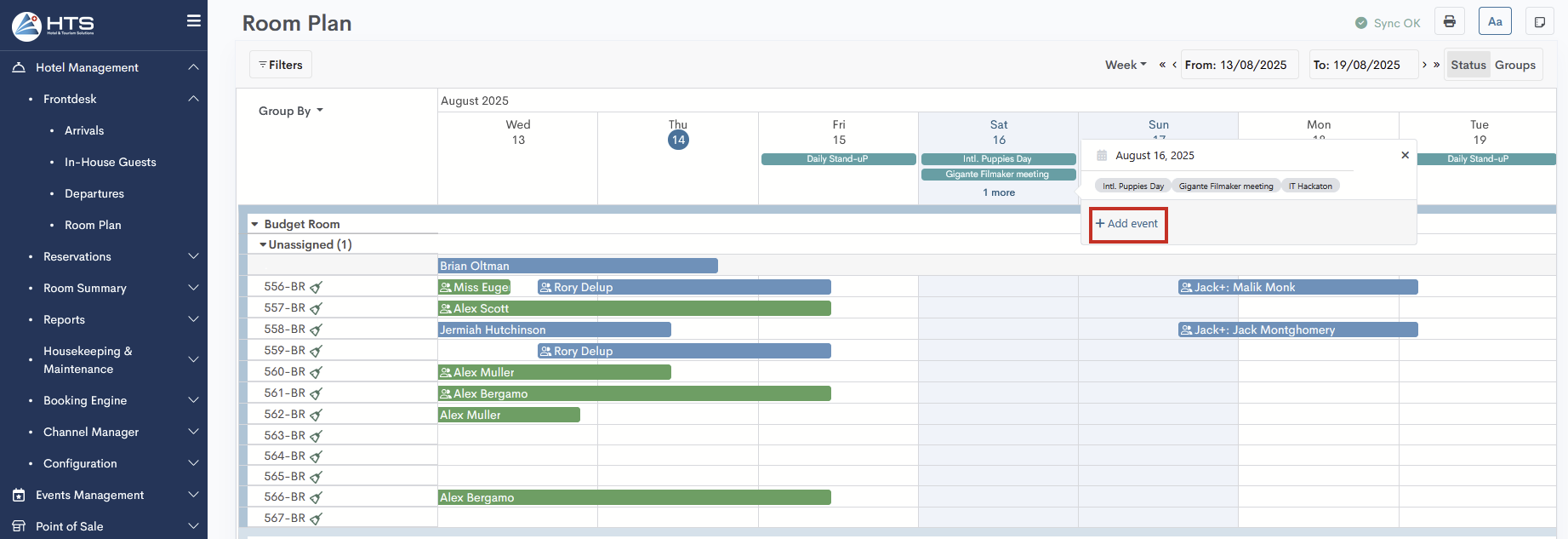
- Clicking "More" displays a widget with all additional events for that date — each event can be clicked to view details.
- Events are sorted by start date, from earliest to latest.
In the widget showing all events for the selected day, there is also an option to create a new event.
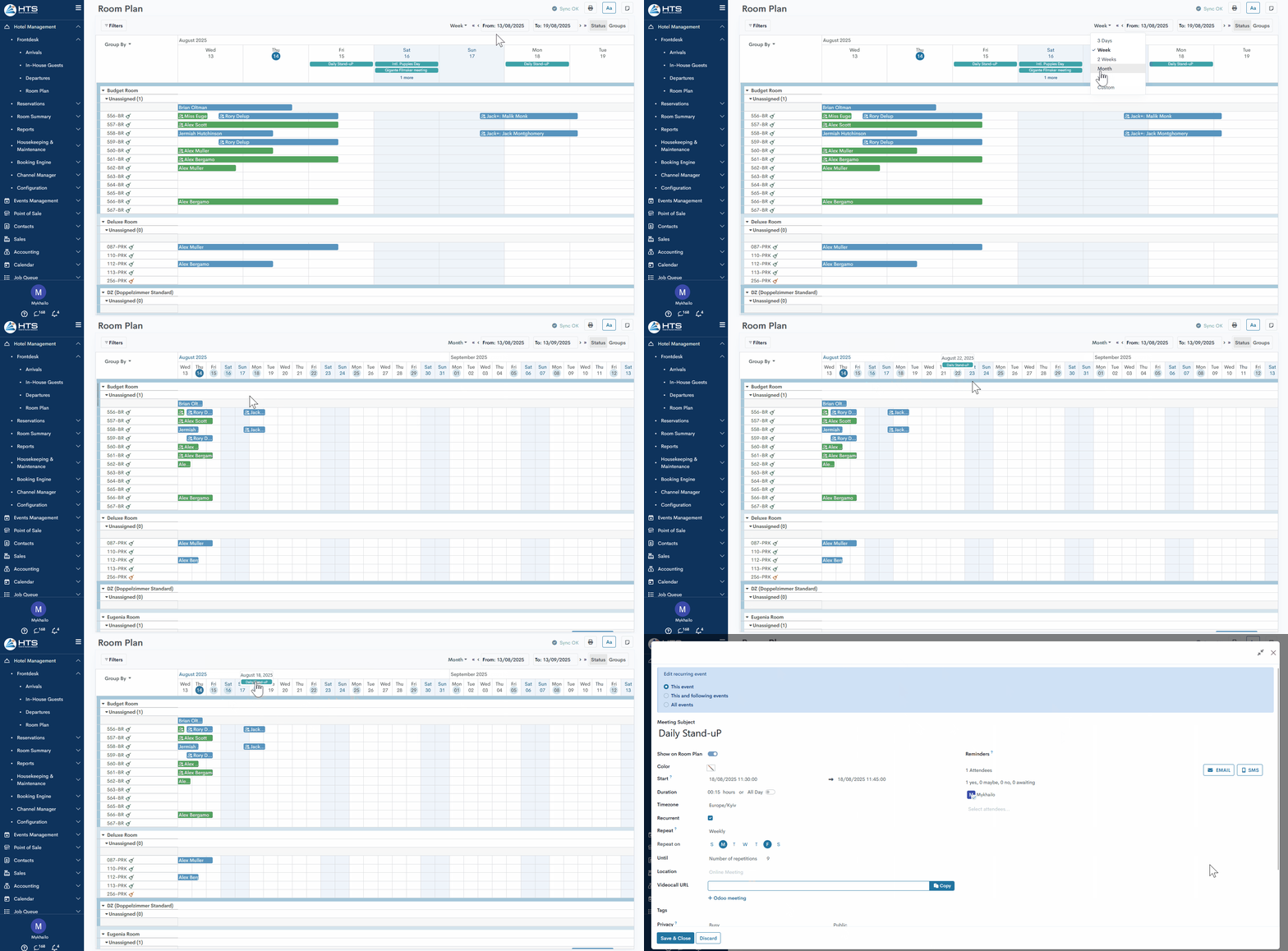
When you change the date range of the room plan (e.g., to display several weeks or months), the system adjusts how events are shown to save space.
- If there is not enough space to display event tags for each date, the system highlights dates with at least one event using a light-blue circle.
- Hovering over a highlighted date shows a list of up to five events for that day, displayed as tags.
- Clicking a tag opens the full event form for detailed viewing or editing.
Momentan sind keine Kommentare vorhanden.
, um als erster einen Kommentar zu hinterlassen.