The large conference room can be easily divided into multiple sections, allowing for simultaneous smaller events to take place. This flexibility not only maximizes the use of the space but also provides cost-saving options for hosting smaller events within the same venue. By partitioning the room, organizers can cater to different event sizes and requirements without the need for separate venues, offering a convenient and efficient solution for event planning.
How to setup Event Sections
To create a new event section or edit an existing one, follow these steps:
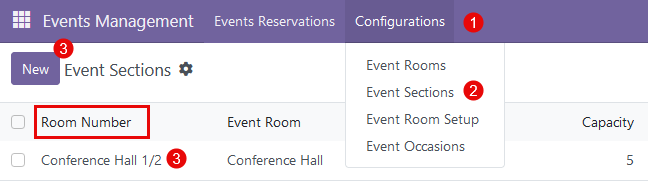
- in the 'Event Management' module click on the 'Configurations' tab;
- in the drop-down click on 'Event Sections';
- to create a new section - click the 'New' button; to edit an existing one - click on an existing line.
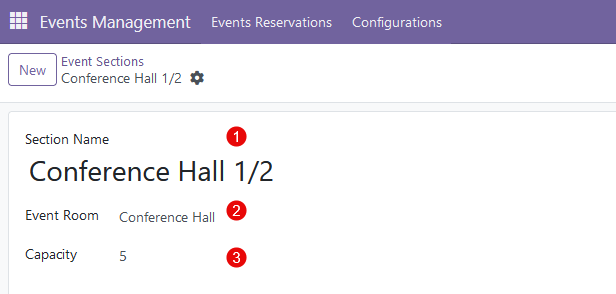
After clicking on the 'New' button or existing line, a new form with the following fields will be available for filling out:
- Section Name - provide a name for the event section;
- Event Room - specify the event room to which this section belongs;
- Capacity - specify the capacity for the certain event section.
How to modify Event Sections
All available event sections are displayed in a list view in the 'Event Sections'. 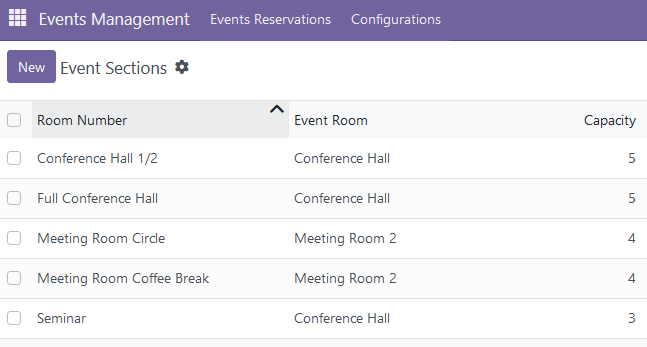
The following modification options are available:
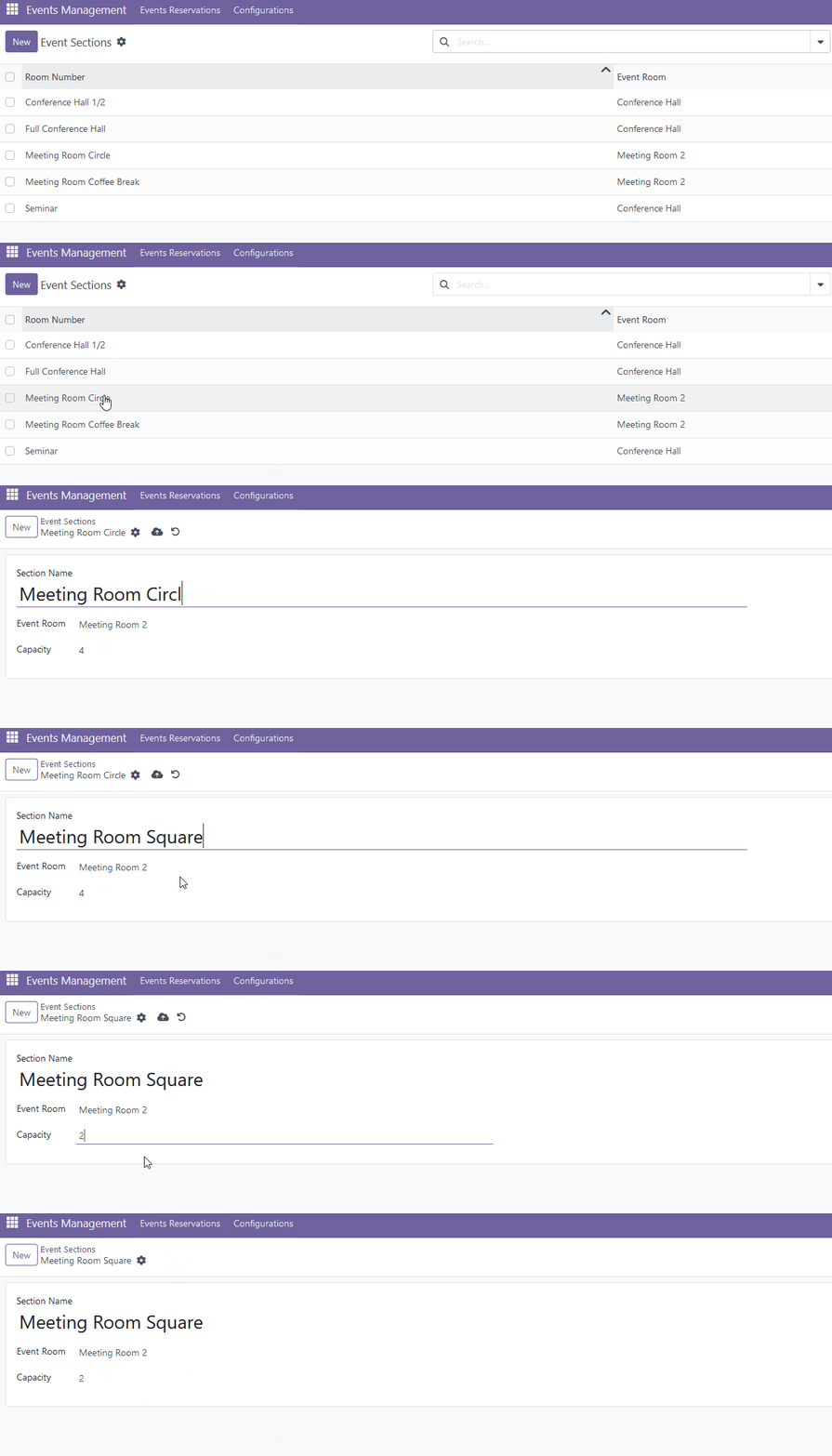
- to edit the existing event section, click on the desired line and make necessary changes - change a name, update capacity, or change a room where it belongs;
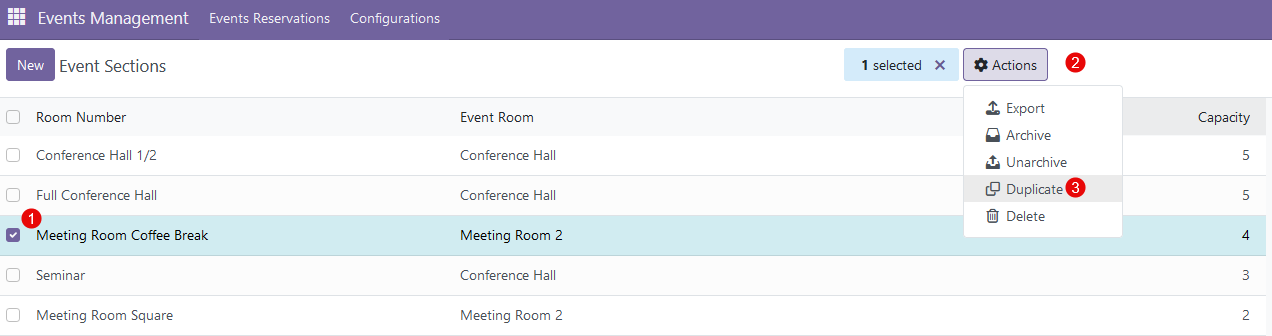
- to duplicate the existing event room, select the desired event room and click 'Actions' -> 'Duplicate';
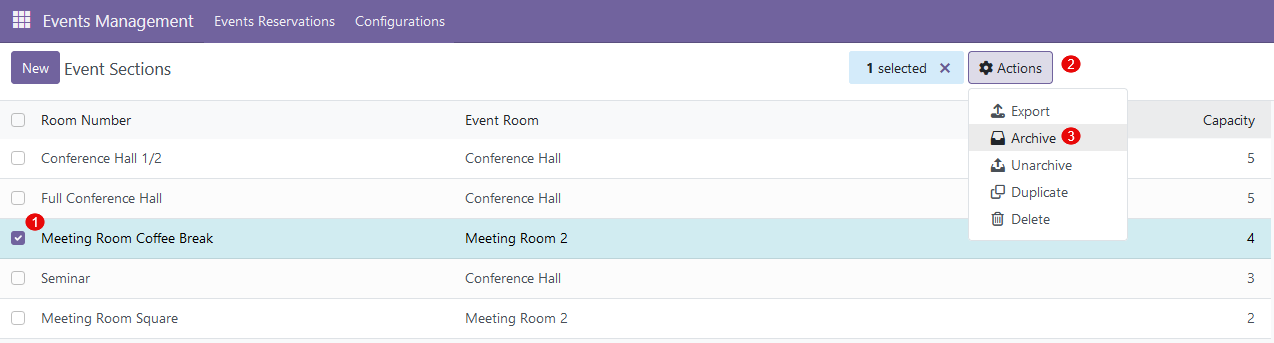
- to archive the existing event room, select the desired event room and click 'Actions' -> 'Archive';
- to delete the existing event room, select the desired event room and click 'Actions' -> 'Delete'.

There are no comments for now.
to be the first to leave a comment.